SMS notifications
With Bookingtjeneste, you can easily send automatic SMS notifications to both customers and employees when a booking is made. The system also supports notifications for changes in booking status (such as rejected or canceled), as well as reminders before and after a booking. This gives you flexibility in communication and ensures time-saving processes.
How to create an SMS notification
1. Gå til Automatisering → Arbeidsflyt.
Click on Lag ny arbeidsflyt.
Du vil nå se tre felt:
- Arbeidsflyt navn: Skriv inn et navn for denne arbeidsflyten. For eksempel: SMS ved ny booking.
- Når dette skjer: Velg utløseren for handlingen. For eksempel: Ny booking.
- Gjør dette: Velg handlingen som skal utføres. Velg Send SMS.
4. You will now see a new screen.
- Arbeidsflyt navn: Her står navnet du kalte arbeidsflyten. Endre dette hvis ønskelig. Dette påvirker kun navnet du ser i kontrollpanelet.
- Under Når står det nå Ny booking. Klikk på Endre-knappen for å justere innstillinger i detalj. Du kan for eksempel koble til valgte tjenester, lokasjoner, alternativer og statuser. Da trigges arbeidsflyten kun hvis disse innstillingene er samstemmer.
- Under Gjør dette står det nå Send SMS. Klikk på Endre-knappen.
- Til: Velg mottakerne av SMS. Du kan velge Kunden og/eller Alternativet. Du kan også legge til andre telefonnummer som skal være fast, klikk Enter.
- Innhold: Skriv innholdet i e-posten. Ved å klikke på Nøkkelord kan du legge inn dynamisk informasjon (plassholdere) som kundens navn, tjenestenavn osv. Dette tilpasses automatisk når e-posten sendes.
7. Save.
When can automatic SMS notifications be sent?
On new appointment: Send notifications when a new booking is added.
On agreement change: Send notifications when an agreement is changed by the customer or employee.
On cancellation or status change: Send notifications when the status of an appointment changes or is canceled.
Pre-appointment reminder: Send notifications x minutes before an appointment starts (e.g. 1 hour before).
After the deal: Send notifications after the deal is over to get feedback from the customer.
When a new customer is created: Send a notification when a new customer is registered, including access details if enabled.
Important details
Telephone number
SMS-ene sendes fra bookingtjenestens eget SMS-navn, Reservasjon. Dette kan ikke endres, og mottakeren vil ikke kunne svare på SMS-en.
Test SMS
Du kan teste SMS-varslinger under oppsettet ved å bruke knappen Lagre og Test. Husk å bruke +47 foran testnummeret ditt (f.eks. +471234567).
How SMS sending works with segment and quota counting
Message is divided into segments: Each SMS can contain up to 153 characters. If you type more, the message is automatically divided into multiple SMSs (segments).
Check used quota: Before we send, the system looks at how many SMS segments you have already used this month.
Sjekk av ledig kvote: Vi legger sammen brukte segmenter + segmenter meldingen krever. Overskrider summen din månedskvote, sendes ingenting.
Sending and logging: If you have quota left, we send everything to Twilio in one call. For each segment we send, one log entry is created – so you always see the exact number of SMS segments used.
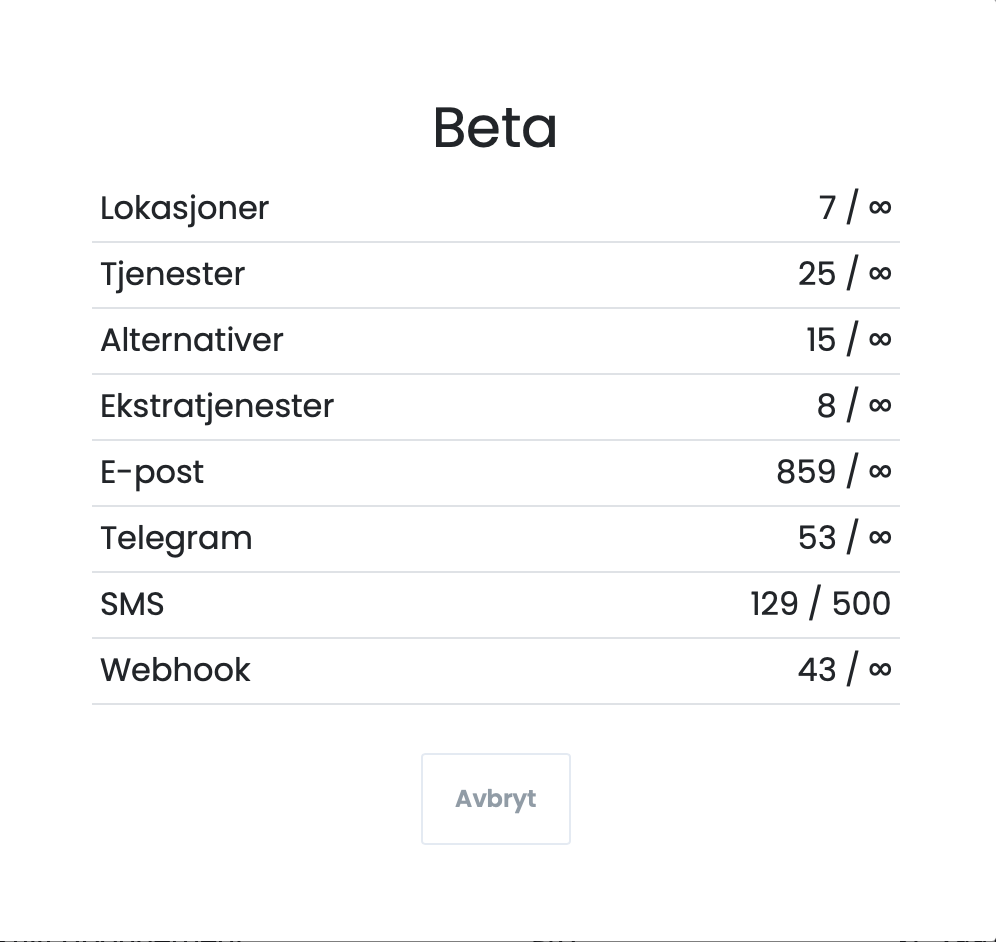
How to check your SMS quota
Click on your username in the top right.
Velg Abonnement.
Trykk Gjeldende abonnement.
You will then get an overview like this:
Briefly about placeholders (e.g. {{name}})
- The placeholder is replaced with the actual content (e.g. “Ola Nordmann”) before we count characters.
- All characters – letters, spaces, punctuation marks, and the inserted name – count towards the 153 characters allowed per segment.
- Tip: Plan for the longest name you expect to use to avoid unintentional extra segments.