Waiting list with automatic notifications
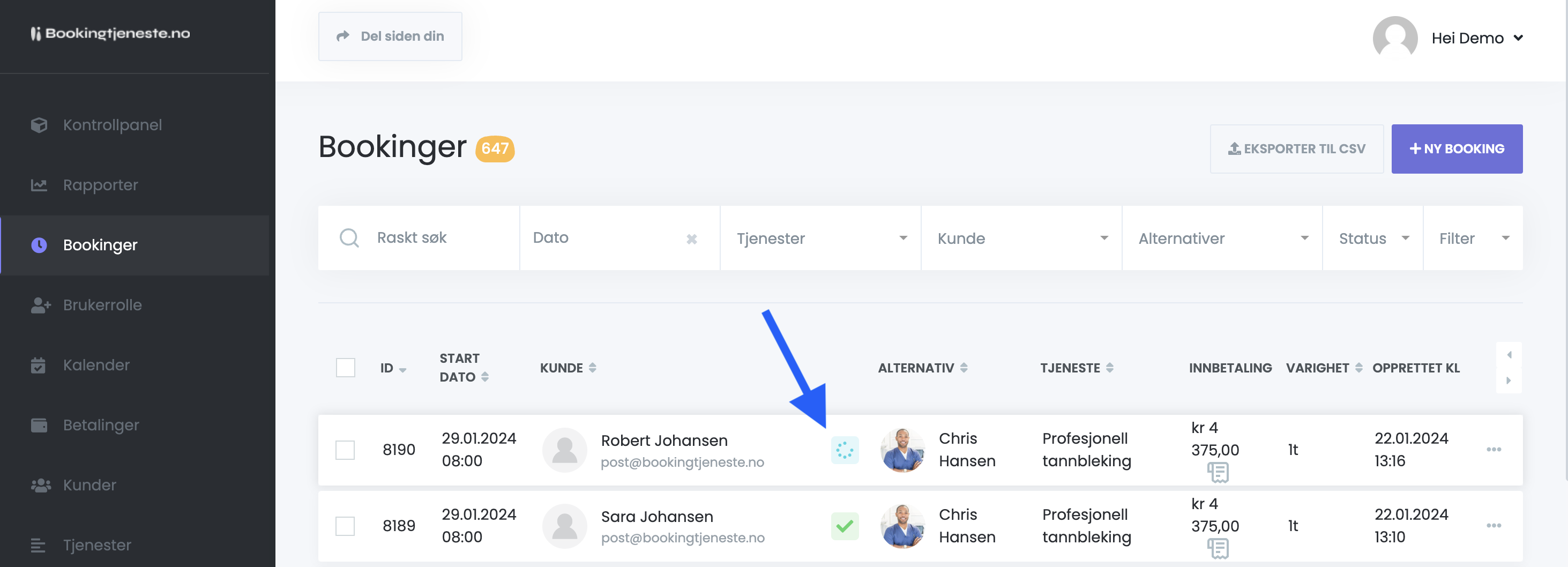
When the waiting list is activated in the Booking Service, customers can put themselves on the waiting list for times that are already fully booked. If a time becomes available, the system will automatically assign the space to the customer who has been on the waiting list the longest. The customer will then be notified that they have been given a space.
Important points:
- Automatic allocation: Available seats are automatically given to the first customer on the waiting list when a booking is canceled, declined, deleted, or set to “not taken”.
- Notification: The customer who is assigned the space will automatically receive a notification via email or SMS with all the details.
- Warning: When staff makes a booking available, a warning appears stating that the next customer on the waiting list will automatically receive the offer.
- Overview: Even if the waitlist is deactivated, the waitlist status of existing bookings in the system is retained.
Workflow and notifications
The system has a ready-made workflow for notifying both customers and staff, which is enabled by default. These workflows can be edited, or you can create your own workflows if you want customizations. Everything is automatic – the system assigns and notifies the right customer, without you having to do anything manually. You can customize the notifications under “Workflow” if you need your own messages or routines.
How to activate Waiting List
Gå til Administrasjon → Innstillinger.
Click on Generally, deretter Waiting list.
Velg Aktivert på Venteliste. Venteliste vil be om noen kriterier for å fungere, vennligst følg disse før aktivering.
Workflow for staff and customers with waiting list
post eller SMS varsling til personale og kunde når et tidspunkt blir ledig, gjør følgende.
Click on Workflow i hovedmenyen.
Click on Lag Arbeidsflyt.
Fill in your name. (For internal use).
Under Når dette skjer velg: Tidspunkt er ledig.
post eller Send SMS melding.
Click on Opprett.
Du kan tilknytte denne arbeidsflyten til kun noen valgte Tjenester, Lokasjoner eller Alternativer ved å klikke på Endre under Når.
posten eller SMS-en. Mottaker bør være Alternativet and Kunde. Husk å lagre når du er ferdig.
Completed. This workflow will be triggered automatically when a time slot becomes available for a customer who is on the waiting list. This is triggered by a previous customer canceling their booking.